

TidyCal takes about fifteen minutes to set up properly. This guide covers the whole flow, connecting calendars, building booking types, generating meeting links, taking payment and sharing the page, and flags the three places where setups go wrong: the free plan cannot create meeting links, SMS reminders barely exist, and the 1% fee on paid bookings survives a lifetime purchase.
Everything below reflects TidyCal’s own feature table as it stood in October 2026.
Before you start: what your plan can do
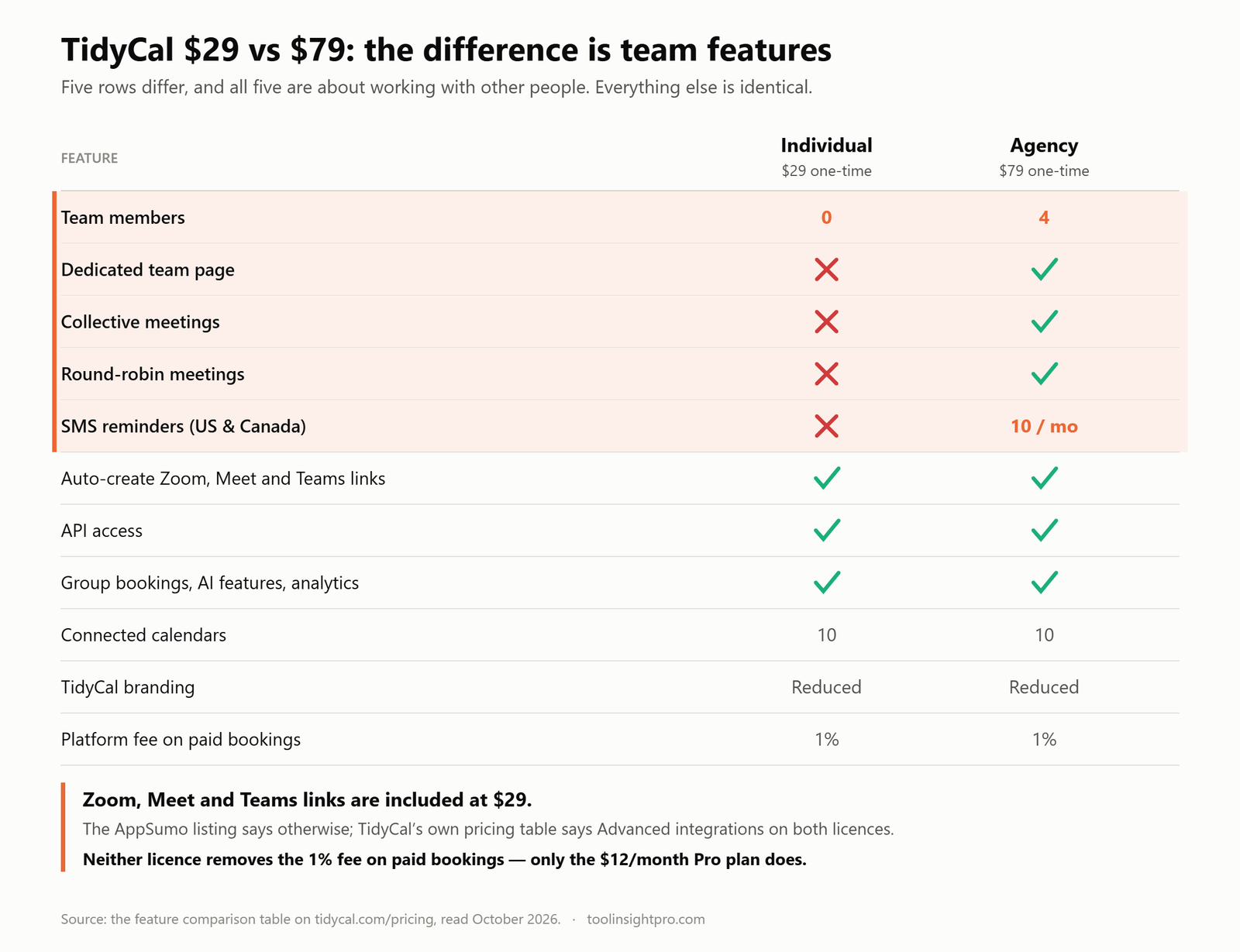
| Free | $29 Individual | $79 Agency | Pro $12/mo | |
|---|---|---|---|---|
| Connected calendars | 1 | 10 | 10 | Unlimited |
| Auto-create Zoom, Meet, Teams links | ✗ | ✓ | ✓ | ✓ |
| Group bookings, booking limits | ✗ | ✓ | ✓ | ✓ |
| Custom emails, reply-to, CC | ✗ | ✓ | ✓ | ✓ |
| API access | ✗ | ✓ | ✓ | ✓ |
| Team members | N/A | 0 | 4 | N/A |
| Team page, collective, round-robin | ✗ | ✗ | ✓ | ✓ |
| SMS reminders (U.S. and Canada) | ✗ | ✗ | 10 / month | Unlimited |
| Branding | Normal | Reduced | Reduced | None |
| Custom domain | ✗ | ✗ | ✗ | ✓ |
| Platform fee on paid bookings | 1% | 1% | 1% | None |
Two rows deserve a second look before you configure anything. The free plan cannot generate meeting links, that is the single biggest reason people upgrade, and it is why the $29 licence exists. And the 1% fee is not removed by either lifetime licence; only the Pro subscription removes it. If you sell sessions, read our full review for where the break-even sits before you commit.
Note that the AppSumo listing describes the $29 tier’s integrations as Basic, which contradicts the table above. We follow TidyCal’s own pricing page, but confirm it in your account during the 60-day refund window if conferencing links are why you are buying.
Step 1: Connect your calendars
TidyCal reads your existing calendars to work out when you are busy, and writes new bookings back to one of them. Skip this and the tool will happily double-book you.
- Open Calendars in your TidyCal account.
- Choose Google, Office 365 or Apple Calendar and authorise the connection.
- Pick which calendars TidyCal should read for conflicts, this can be several at once.
- Pick the single calendar TidyCal should write new bookings to.
Those last two are separate settings and people routinely configure only the second. Connect your personal calendar for conflict-checking even if bookings land in your work calendar, or TidyCal will offer slots while you are collecting a child from school.
Both lifetime licences allow ten connected calendars, and both let you choose a different calendar per booking type, useful if client work and internal meetings should land in different places. The free plan allows one.
Step 2: Build your booking types
A booking type is one bookable thing: a thirty-minute intro call, a paid consultation, a weekly check-in. Booking types are unlimited on every plan including free, so there is no reason to compress several services into one.
For each one you set:
- Duration and availability windows for that specific type.
- Buffer time before and after, so back-to-back calls do not actually run back to back.
- Booking limits, daily, weekly or monthly caps. Paid plans only.
- Meeting location, a generated video link, a phone number or an address.
- Custom questions the invitee answers when booking.
- Manual approval, if you want to vet bookings before they are confirmed. Paid plans only.
Buffer time and booking limits are the two settings that actually protect your week, and both are off by default. Fifteen minutes of buffer and a cap of four calls a day will do more for your calendar than anything else in the product.
TidyCal supports one-on-one, group and recurring booking types, so a workshop with twelve attendees or a retainer check-in are native rather than workarounds. Group bookings need a paid plan.
Step 3: Set the meeting location
On any paid plan, TidyCal generates the meeting link for you. Its pricing table lists Auto-Create Meeting URLs, covering Zoom, Google Meet and Microsoft Teams, as included on Individual Lifetime, Agency Lifetime and Pro, and excluded on Free.
Your options per booking type:
- A generated Zoom, Google Meet or Teams link, unique per booking. Paid plans.
- Phone or in person, you type the number or address and it appears in the confirmation. Every plan.
- A static custom link, your own permanent room URL. Every plan, including free, and the workaround free users rely on.
- Multiple locations per booking type, letting the invitee choose. Paid plans.
The static-link workaround is the thing to be careful with. It works, but every invitee gets the same URL, so two clients can wander into each other’s call. For a personal Whereby or Jitsi room that is fine; for client work it is not, and the fix is a paid licence rather than a shared room.
Step 4: Turn on payments, if you charge
TidyCal takes money at the point of booking through Stripe or PayPal. Connect the account, price the booking type, and the invitee pays before the slot is confirmed.
Three things to know, in order of how much money they involve:
- The 1% platform fee applies on Free, $29 and $79 alike, on top of Stripe’s own charges. Only the Pro subscription at $12 a month removes it. At roughly $8,900 of bookings a year the fee outgrows Pro’s $99 annual price, so above that volume the subscription is the cheaper plan even against a lifetime licence.
- Packages and subscriptions are supported, a client can buy five sessions upfront and draw them down, or pay recurringly. Discount codes are included too, on every plan.
- A digital storefront lets you sell PDFs, courses or templates with Stripe checkout and attach them as add-ons to paid booking types. This is on every plan, free included.
Set payments up before you share any links. Retro-fitting a price to a booking type clients already use means re-sharing the link.
Step 5: Confirmations, reminders and no-shows
TidyCal sends a confirmation on booking and reminders before the call. On a paid plan you can customise the timing and content of both, CC additional addresses, and set a custom reply-to so a client replying to a confirmation reaches your real inbox. That last one takes ten seconds and almost nobody turns it on.
Do not plan around SMS. SMS reminders are not available on the $29 licence at all, capped at ten a month on the $79 licence, unlimited only on Pro, and in every case they reach U.S. and Canadian numbers only. If your clients are in the UK, Europe or Australia, SMS is not an option at any lifetime price. A second email reminder an hour before the call does most of the work.
Paid plans also give you cancellation and no-show controls, including charging a fee, plus reschedule restrictions that stop someone moving a call thirty minutes before it starts. If no-shows cost you money, these are the settings to find.
Step 6: Share the booking page
TidyCal hosts your booking page and lets you choose its style, including a website view that presents it as a small branded site rather than a bare list of slots. You can show or hide individual booking types, so a private retainer link sits alongside a public intro call.
Two limits on branding. Both lifetime licences give reduced TidyCal branding, not none, only Pro removes it. And the custom domain is Pro-only, so a lifetime licence cannot put the page on book.yourbusiness.com. For agency work sending links under a client’s brand, that is the constraint to check before you buy.
Then put the link in your email signature, on your contact page and in your proposal template. The link is the product; a perfectly configured page nobody has seen books nothing.
Step 7: Let reviews accumulate
TidyCal collects a rating and review automatically after each completed booking and can display them on your booking page. It is included on every plan, free as well. For a consultant or coach that is social proof gathered without chasing anyone for a testimonial, tied to the specific service rather than a generic quote.
It is off the critical path for getting booked, and it is the setting most people never find.
What the client sees
Three screens: they open your link, pick a booking type, and choose a slot from your real availability. They enter a name, an email and any custom questions, pay if the type is priced, and get a confirmation with the calendar invitation and meeting location attached. They can add guests to the invitation themselves.
They never create an account and they never see your calendar. The only thing that reaches them is the set of slots you are genuinely free for, which is why step one matters more than it looks.
Driving TidyCal from another system
Zapier is listed as an integration and is the practical route for most “when someone books, add them to my CRM” work.
The API is included on both lifetime licences, which is unusually generous at this price, but it has gaps: eighteen documented endpoints, no webhooks (so anything event-driven has to poll), no reschedule endpoint, and no published rate limits. Write calls on a free account return 402 Lifetime subscription required. Our TidyCal API guide has the endpoint list.
There is also CSV export on paid plans, which covers the cases where a nightly export beats a live integration.
A fifteen-minute setup checklist
- Connect every calendar that should block your availability, not just the one bookings land in.
- Create one booking type per service rather than one catch-all.
- Set a buffer and a daily cap on each type.
- Choose a generated meeting link rather than a static room, if you are on a paid plan.
- Connect Stripe or PayPal before sharing any paid link, and know the 1% fee still applies on a lifetime licence.
- Turn on the custom reply-to address.
- Assume email reminders. SMS is North America only and absent at $29.
- Set cancellation and no-show controls if missed calls cost you money.
- Open your own booking page as a visitor before you send the link to anyone.
Check the current TidyCal deal on AppSumo →
Frequently asked questions
Does TidyCal work with Zoom?
On any paid plan, yes. TidyCal’s pricing table lists auto-created Zoom, Google Meet and Teams links as included on Individual Lifetime ($29), Agency Lifetime ($79) and Pro, and excluded on Free. The AppSumo listing describes the $29 tier as Basic integrations, which contradicts that, confirm it in your account during the 60-day refund window.
Can the free plan create meeting links?
No. This is the free plan’s biggest limitation. You can paste a static custom link that stays the same for every booking, but TidyCal will not generate a unique one per meeting until you are on a paid plan.
How many calendars can TidyCal connect?
Ten on both lifetime licences, one on free, unlimited on Pro. You can use several connections purely for conflict-checking while bookings are written to one, and choose a different calendar per booking type on paid plans.
Does TidyCal send SMS reminders outside North America?
No. SMS covers U.S. and Canadian numbers only, is unavailable on the $29 licence, capped at ten a month on $79, and unlimited only on Pro. Everywhere else, reminders are email.
Does a lifetime licence remove the payment fee?
No. The 1% platform fee on payments processed through Stripe applies to the free plan and to both lifetime licences. Only the Pro subscription removes it.
Can I use my own domain for the booking page?
Only on Pro. The custom domain is not available on either lifetime licence, and branding on both is reduced rather than removed.
Can I get a refund if TidyCal does not suit me?
AppSumo lists the TidyCal licence as refundable up to 60 days, long enough to set the whole thing up, run real bookings through it, and find out whether the limits above affect you.
Related reading
- TidyCal review: the $29 lifetime deal and its 1% catch
- TidyCal AppSumo deal: $29 vs $79 compared
- TidyCal pricing explained
- TidyCal vs Calendly
- TidyCal FAQ
- TidyCal alternatives
How we checked this: every plan limit and feature above was read in October 2026 from the feature comparison table on tidycal.com/pricing and the TidyCal AppSumo listing. Where those two disagree, we say so. Full review methodology.
Disclosure: the AppSumo link in this article is an affiliate link. Your price is unchanged and ToolInsight Pro may earn a commission. See our affiliate disclosure.