
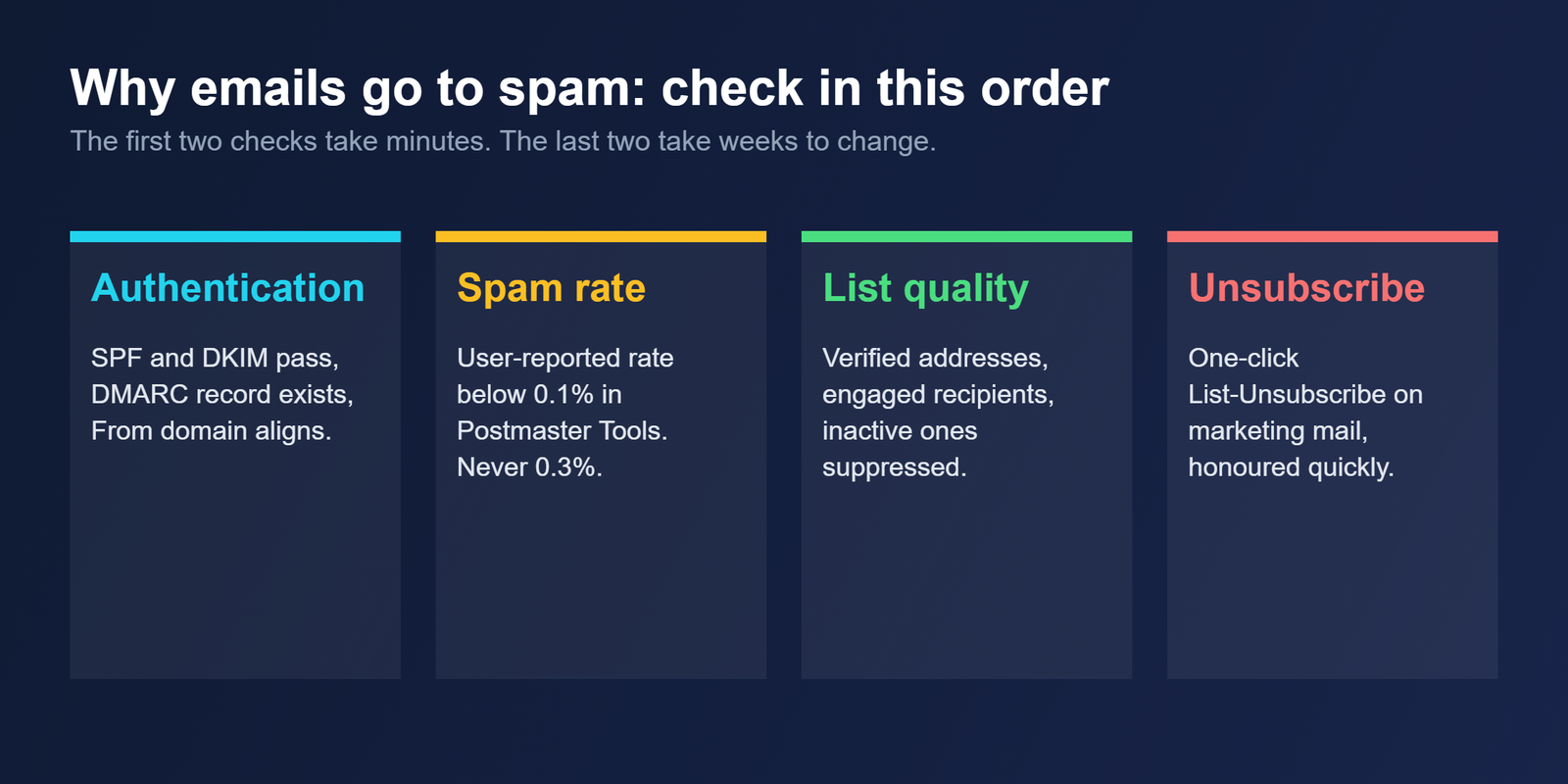
Emails go to spam for one of four reasons: failed authentication, a poor sender reputation, a list that does not engage, or marketing mail with no easy way to unsubscribe. Check them in that order. The first two can be tested in minutes, and the last two take weeks to change.
The short version
Start with the headers of a test message. If SPF or DKIM fails, nothing else matters until that is fixed. If they pass, check your spam rate in Google Postmaster Tools, then your list, then your unsubscribe handling. The figures below come from Google’s sender guidelines, which apply to every sender writing to personal Gmail accounts.
Start with authentication, because it is a yes or no
Google requires every sender to pass both SPF and DKIM, publish a DMARC record with a policy of at least p=none, and align the From domain with the SPF or DKIM domain. Only one of the two needs to align. Forward and reverse DNS records must be valid, messages must go over TLS, and the format must follow RFC 5322. Failures lead to temporary or permanent rejection codes, or to the spam folder.
| Check | What Google requires | How to check it |
|---|---|---|
| SPF and DKIM | Both pass | Read the Authentication-Results header on a test message |
| DMARC | A record with a policy, at least p=none | Query the TXT record at _dmarc on your domain |
| Alignment | From domain matches the SPF or DKIM domain, one is enough | Compare the domains in the same header |
| PTR | Valid forward and reverse DNS for the sending IP | Look up the sending IP and its hostname |
| TLS | Mail sent over TLS | Check your sending platform settings |
If you have not set these up, our SPF, DKIM and DMARC explainer walks through the records. If a bounce quotes a 5.7.x code, our guide to the 554 5.7.5 DMARC error covers the most common record faults.
Then check your spam rate
Google measures the share of messages that recipients mark as spam and calculates it daily in Postmaster Tools. It asks senders to keep that rate below 0.1% and never to let it reach 0.3%. Google says rates above 0.1% already hurt inbox delivery, and a bulk sender above 0.3% loses eligibility for mitigation, which returns only after 7 consecutive days below it.
A bulk sender, in Google’s definition, is a primary domain that sends close to 5,000 messages or more to personal Gmail accounts in 24 hours, and that status is permanent. Google also says enforcement against non-compliant traffic increased from November 2025. Our bulk sender checklist covers the full list.
Look at who you are sending to
A spam rate climbs when people receive mail they did not want or no longer read. Verifying addresses removes the bounces, and our guide to B2B email verification shows how. Removing people who stopped engaging helps with the complaints, which is the subject of the piece on suppressing inactive subscribers.
A new domain with no sending history faces the same scrutiny with less evidence in its favor. If that is your case, follow the ramp described in the domain warm-up guide rather than sending a full campaign on day one.
Fix the unsubscribe handling
Google requires one-click unsubscribe for marketing and promotional messages only. Transactional mail, such as password resets and reservation confirmations, is exempt. The implementation uses List-Unsubscribe headers under RFC 8058 with one HTTPS URL. A mailto link or a web page alone does not meet the requirement. Google recommends honoring a request within 48 hours.
Missing one-click unsubscribe does not by itself cause a message to be rejected or sent to spam. The effect is indirect: people who cannot leave easily report the message as spam instead, and that raises the rate described above.
| What you see | Most likely cause | First thing to do |
|---|---|---|
| Everything from a new domain lands in spam | Failed authentication or no sending history yet | Read the headers, then ramp volume slowly |
| Bounces quoting a 5.7.x code | An authentication or DMARC fault | Check the DMARC record and sender alignment |
| Delivery was fine, then dropped suddenly | A spam rate above 0.1% | Check Postmaster Tools, pause and suppress inactive contacts |
| Marketing mail lands in spam, transactional mail does not | Weak engagement or no one-click unsubscribe | Add List-Unsubscribe headers and tighten the list |
Questions about emails going to spam
Why do my emails go to spam when SPF and DKIM pass?
Passing authentication is the entry requirement, not a guarantee. Google also looks at your user-reported spam rate, which should stay below 0.1%, and at whether marketing mail offers one-click unsubscribe. Check the spam rate in Postmaster Tools next.
Does a new domain automatically go to spam?
No. Failed authentication and a lack of sending history are the usual reasons, and both can be fixed. Set up SPF, DKIM and DMARC first, then raise volume gradually as described in our domain warm-up guide instead of starting at full speed.
How do I check my Gmail spam rate?
Use Google Postmaster Tools, which calculates the user-reported spam rate daily. Google asks senders to keep it below 0.1% and never to let it reach 0.3%, because delivery help becomes unavailable to bulk senders above that line.
Do I need one-click unsubscribe?
Only for marketing and promotional messages. Transactional emails such as password resets are exempt. Google requires List-Unsubscribe headers under RFC 8058 with an HTTPS URL, and a mailto link or a web page on its own does not meet that standard.
Are spam trigger words why my email goes to spam?
The Google guidance we reviewed names no list of trigger words. It focuses on authentication, spam rate, format and unsubscribe handling. Fix those first, since rewording rarely rescues a domain with failing authentication or a high complaint rate.
Bottom line
Work through authentication, spam rate, list quality and unsubscribe handling in that order, and stop at the first failure. Most spam folder problems are explained by one of the four, and the cheapest check always comes first.
Related reading
- SPF, DKIM and DMARC explained: the records behind the first check
- Google and Yahoo bulk sender requirements: the full checklist and thresholds
- Small engaged list vs large unengaged list: why list quality decides placement